
Categories, pinned posts and the welcome post
Categories keep the community feed tidy, pins keep the important posts on top, and a welcome post tells new members what to do first.
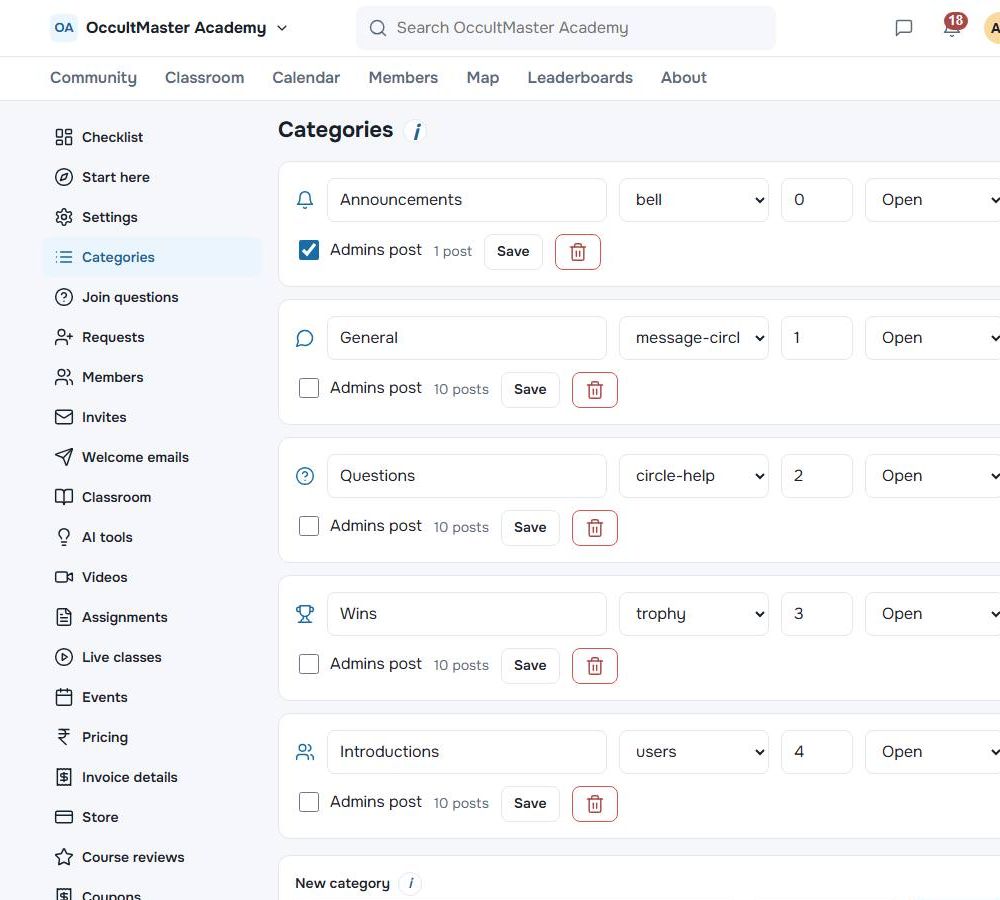
A new community starts with five categories: Announcements (admins only), General, Questions, Wins and Introductions. A Hindi community gets them in Hindi. You can rename, reorder or delete any of them.
Set up your categories
- Open Admin, then Categories.
- For each category you can change the Name, the Icon and the Order (lower numbers come first).
- Unlocks at level: choose a level if only members at that level or above may post there. "Open" means everyone.
- Admins post: tick it for a category where only admins write, such as Announcements. Members can still read and comment.
- Click Save on the row.
- To add one, type its name under New category and click Add.
Deleting a category keeps its posts; they simply have no category.
Write a welcome post
- Open the Community tab (called Discussions if you chose those names) and click Write something.
- Give it a clear title, for example "Start here".
- In three or four lines, say what to do first: introduce yourself, open the first lesson, look at the next live class.
- Choose a category (Announcements works well) and click Post.
Pin it
- Open the post, click the Post actions menu and choose Pin to the top.
- Up to five posts can be pinned. They stay above everything else in the feed.
- To change their order, open Admin, Pinned posts, type the post numbers in the order you want, separated by commas, and click Save order.
Two more welcome touches
In Admin, Plugins:
- Welcome message: sent from you as a chat message to every new member. Leave it empty to turn it off.
- Onboarding video: a YouTube or Vimeo link new members see at the top of the feed until they hide it.
We only count yes and no for each article. Nothing about you is stored.