
Assignments and feedback
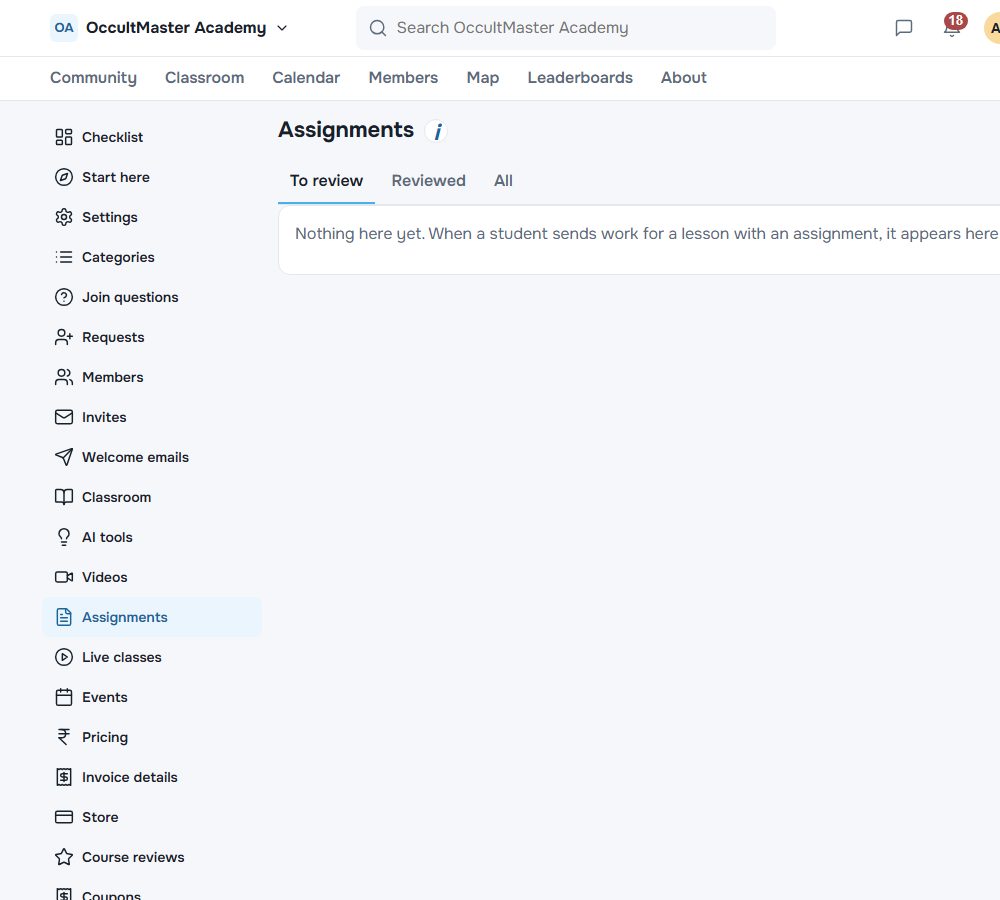
Give a lesson an assignment, and members upload their work on the lesson page. You give feedback and a grade under Admin, Assignments, and the member is told.
On this page
An assignment turns a lesson into practice, for example "draw the birth chart for this date and upload a photo of it".
Set one
In the lesson editor, write what the student should do under Assignment (optional), then publish the lesson.
What the student does
On the lesson page, the student adds a file (a PDF, a picture or an MP3, up to 20 MB), a note, or both, and presses Send my work. They can send again after your feedback.
By default the lesson counts as done once the work is sent. The platform can instead count it done only after you have reviewed it.
Your review
- Admin, Assignments lists new work under To review. You are also notified each time work arrives.
- Open one, download the file, and write your feedback. A grade is optional: a letter, a score or Pass.
- Press Save and tell the student. The feedback and grade appear on their lesson page, and they are notified.
We only count yes and no for each article. Nothing about you is stored.