
Connect your own Razorpay account (test mode first)
Members pay straight into your Razorpay account. Paste your test keys in Admin, Pricing, add the webhook, and try a payment.
On this page
Every paid community uses its own Razorpay account. Your members' money goes to you directly; the platform only records its fee. Start in Razorpay's test mode, where no real money moves.
What you need
- A Razorpay account. Signing up and switching to test mode is free.
- Your test API key id (it starts with
rzp_test_) and its key secret.
Get your test keys from Razorpay
- Sign in to the Razorpay Dashboard and switch to Test Mode.
- Open Account & Settings, then API Keys, and generate a test key.
- Copy the key id and the key secret. Razorpay shows the secret only once, so keep it somewhere safe.
Paste them into your community
- In your community, open Admin, then Pricing.
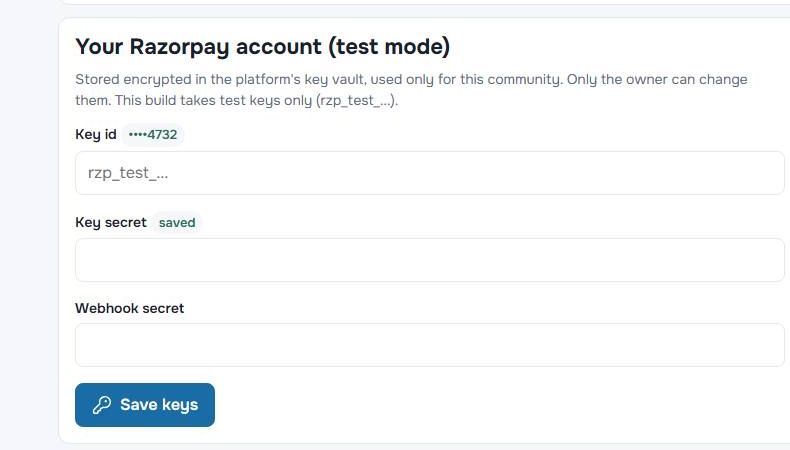
- Scroll to Your Razorpay account (test mode).
- Paste the Key id and the Key secret.
- Click Save keys. You will see "Razorpay keys saved, encrypted."
The keys are stored encrypted in the platform's key vault and used only for this community. Only the owner can change them. This build accepts test keys only.
Add the webhook
Razorpay tells your community when a payment goes through or a renewal fails. This is how access is given and renewed.
- In the Razorpay Dashboard (still in test mode), open Webhooks and add a new webhook.
- The address is your community's address followed by
/webhooks/razorpay. - Make up a strong secret, enter it there, and select the payment, order, refund and subscription events.
- Back in Admin, Pricing, paste the same secret into Webhook secret and save.
Try a payment
Open your community in a private window, join with a test account and pay using one of Razorpay's published test cards. The member gets access, a receipt appears in their billing page, and your Creator billing shows the sale with the fee recorded.
Good to know
- Without keys, checkout says online payment is not set up yet. Coupons still work.
- Refunds made in Razorpay take the access back and reverse the fee.
- Live keys are a separate step at launch, together with your KYC on Razorpay.
We only count yes and no for each article. Nothing about you is stored.