
Create your account and join a community
One account works in every community. Sign in with a code sent to your email or with a password, then join from the community's About page.
On this page
You need one account for every community on Occult Master. Your points, level and membership are kept separately in each community.
Sign in, or create your account
- On any page, tap Sign in. The sign-in page offers Email me a sign-in code, or your email and password.
- For a code, type your email address and tap Email me a code. A 6-digit code arrives by email; it works for 10 minutes.
- Type the code and tap Sign in. If you already have an account, you are signed in straight away.
- If the email is new, there is one last step. Type your name, tick "I have read the privacy notice…" and "I am 18 or older", and tap Create my account. Your account is made only then. Accounts are for people who are 18 or older.
You can also create an account with a password: on the sign-in page, choose Create an account. It asks the same two things. Add a photo, a short bio and your city later in My account. Check your spam folder if the code does not arrive.
One account in every community
Once you are signed in on one community, opening another community on the same browser signs you in there too. You see your photo or initials in the top bar. If you are not a member of that community yet, you see its About page with the Join button. Signing in never makes you a member of anything.
Links from emails and notifications
A link to a post or a lesson, in an email or a notification, keeps its destination. If you are signed out, you first see the community's About page or the sign-in page. After you sign in, or join, you land on that post or lesson.
Pages for admins or for your own account, such as Admin or My account, send a signed-out person to sign in and then back to the page.
Join a community
- Open the community's link. If you are not a member, you see its About page: what it is, its rules, the admins and the price.
- Tap Join (or Join for free).
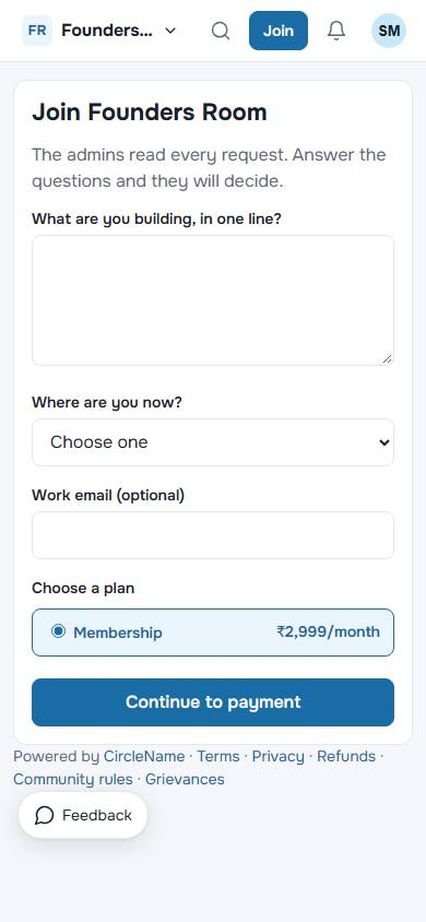
- If the community asks questions, answer them. There are never more than three.
- In a paid community, choose a plan and tap Continue to payment. You pay the community's owner directly through Razorpay.
What happens next
- Open communities let you in at once. You land on the community's feed (or on Home, if the community chose a Home page), or on the post or lesson your link was for.
- Communities with approval show "Your request is waiting". The admins read every request; you get an email when they decide.
- Closed communities say "Doors closed" and are not taking new members for now.
- Invite-only communities have no join button. You join with an invite from someone inside.
Signing out
Open your menu (your picture in the top bar):
- Sign out signs you out of every community, the main site and the sign-in page on this browser.
- Sign out of this community only signs you out here and leaves the others signed in. This community does not sign you back in by itself while the browser stays open.
Your other phones and computers stay signed in either way.
Good to know
- Your account is personal. Use your own email address, and do not share your code with anyone.
- Find more communities on Discover.
We only count yes and no for each article. Nothing about you is stored.