
Find your way around: Community, Classroom, Calendar, Members, Leaderboards
Every community has the same tabs and the same top bar, so once you know one, you know them all.
On this page
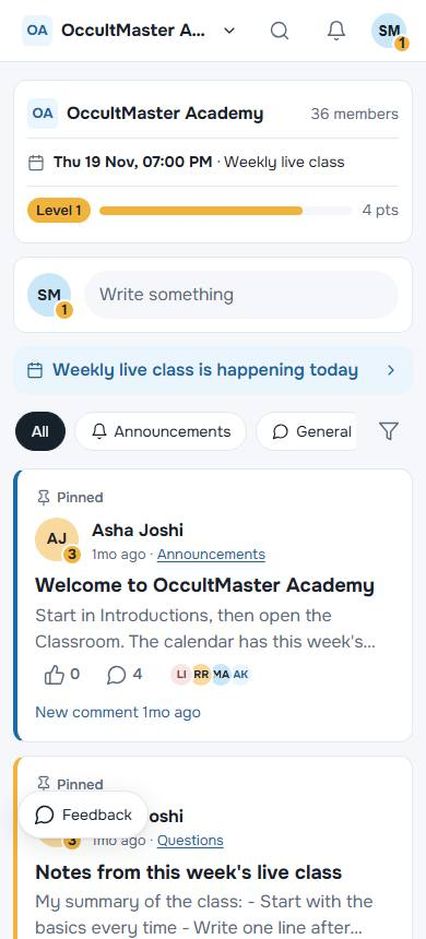
Every community is laid out the same way.
The top bar
- Community name and logo: click it to switch to another community you belong to. A number shows unread notifications there, and Waiting marks a join request still open. Discover communities and Create a community are at the bottom of the list.
- Search: posts you can read, courses and members.
- Chat: your private messages, with the number of unread ones. Click it to see the latest in a small panel.
- Bell: your notifications, also in a small panel.
- Your picture: Profile, Wallet, Settings, Invite friends (or Affiliates), Help centre, Billing, Messages, and Admin for the community's team. Below them are Create a community and Discover communities, and at the bottom Sign out and Sign out of this community only.
When you are signed out, the top bar shows Sign in and Join instead. If you are signed in on another community, opening this one signs you in here too. See the article on creating your account for signing in and out.
On a wide screen, the communities you belong to also sit in a column of logos on the far left. Click a logo to go there. The + at the bottom opens Discover communities.
Your level on your picture
A small number on a member's picture shows their level. See the article on points and levels for how it goes up.
The tabs
| Tab | What is there |
|---|---|
| Community | The posts: pinned posts first, then the newest. Filter with the category buttons; sort by New, Top or Active. A long feed has numbered pages. |
| Classroom | The courses, with your progress and what opens each locked one. |
| Calendar | Live classes and events in your time zone, as a list or a month. |
| Members | Everyone in the community. Search by name; filter by Admins or Online. |
| Map | Members who chose to show their city. |
| Leaderboards | Who earned the most points in 7 days, 30 days and all time, and your own rank. |
| About | What the community is, its rules and its admins. |
A community can switch some tabs off, so you may not see all of them.
On a computer or tablet
The tabs run along the top, under the top bar. In Community, the posts sit in the middle. Under the box where you write a post, a banner names the next event. On the right is the community's card, with its Members, Online and Admins counts (each opens the members list), and a 30-day leaderboard with the top five. Admins also see an Admin button on the card.
On a phone
A bar at the bottom holds Community, Classroom, Calendar and Members, and More for everything else, such as Leaderboards, About, Chat and Admin.
If your community looks different
A community's admins can choose another look in Admin, Look and tips: a rail of icons on the left instead of tabs, the names Discussions, Live and Progress, a Helpful button (a raised hand) instead of Like, a ring around each picture instead of the number, or a Home page as the first page. Everything works the same way.
The addresses follow the names. With the names in this article, the calendar is at /calendar and the leaderboards at /leaderboards. With the other names they are at /live and /progress. An old link always takes you to the right one.
Good to know
- New to a community? Look for a pinned "Start here" post and the Introductions category.
- If something is locked, its label tells you why: a level, a tier, or a price.
We only count yes and no for each article. Nothing about you is stored.