
Lock a course by level, tier or purchase
Every course has one rule for who can open it. Members see the rule on the course card, and a locked lesson never shows its video or files.
On this page
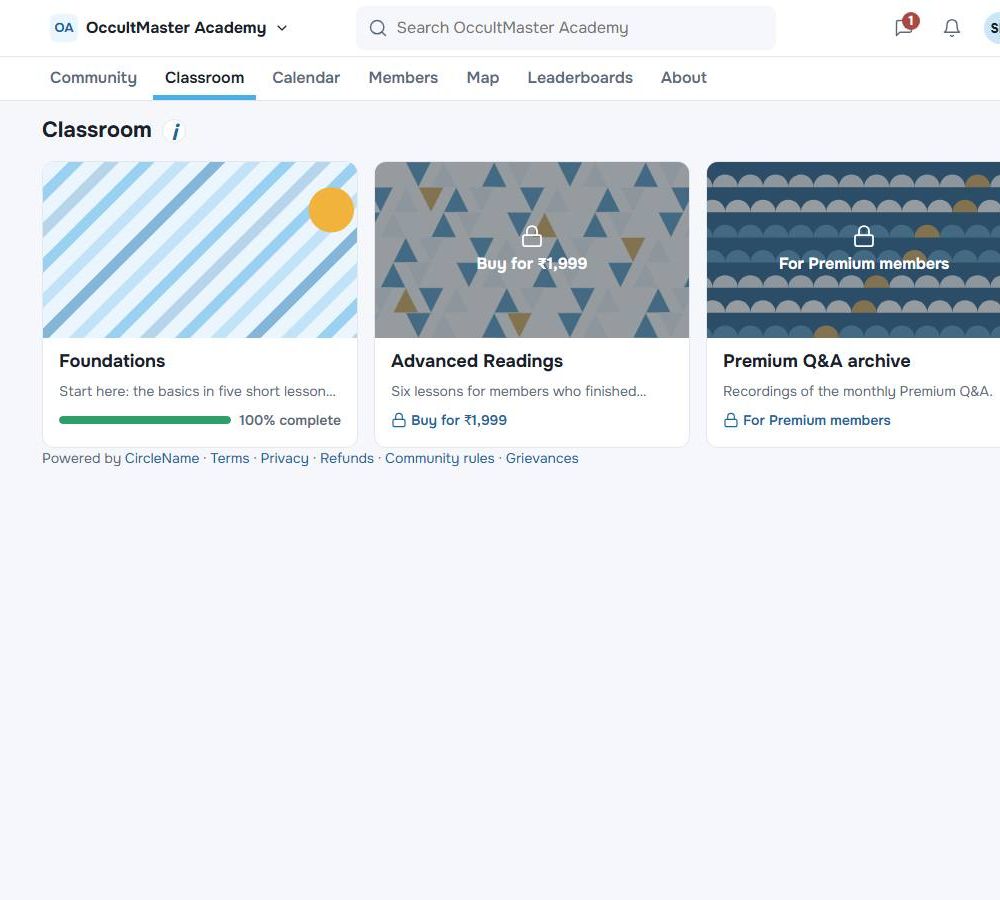
Each course has one setting, Who can open it. It is the first thing you choose when you create a course, and you can change it any time in the course's Settings in Admin, Classroom.
The five choices
| Choice | Who gets in | What members see on the card |
|---|---|---|
| All members | Everyone who has joined | Their progress |
| Members at a level | Members at that level or above | "Unlocks at level 3" |
| A membership tier | Members on that tier or a higher one | The tier's name, such as "Premium members" |
| One-time purchase | Members who bought this course | The price, such as "₹1,999" |
| Only people I add | People you grant it to by hand | "Private" |
Owners, admins and moderators can always open every course. People who have not joined see "Members only".
Set the lock
- Open Admin, Classroom and click Settings on the course.
- Choose Who can open it. Only the field that choice needs is shown.
- Fill it: Level needed (level 2 to 9), Tier needed, or Price (₹). Tiers show by name once you set them up in Admin, Pricing; until then you pick a tier number.
- Click Save course.
Selling a course on its own
With One-time purchase, members pay once through your Razorpay account and keep the course for good. The locked course shows a Buy for button with the price. The sale counts in your sales numbers, appears on the member's receipts, and the platform fee is recorded like any other sale.
Giving a course by hand
Open Admin, Members, click a member, and under Grant a course type the course's address and click Grant. This works for any lock, including Only people I add, and is useful for scholarships or a student who paid you another way. To give a course to many people at once, tick them in the members table and use the bulk action Grant a course.
What a locked lesson shows
A member without access sees the lesson title and a short note explaining what opens it, with a buy or join button where that applies. The page never contains the video, the text blocks or the resource links, so nothing leaks through the page source.
Free previews
Tick Free preview on single lessons to let members who do not have the course try them before they buy. People who have not joined the community see the About page instead. Preview lessons show a Preview tag in the course outline.
We only count yes and no for each article. Nothing about you is stored.