
Quizzes, drip and certificates
Check understanding with a short quiz, release lessons over time with drip, and give a certificate with a public check page when a member finishes.
On this page
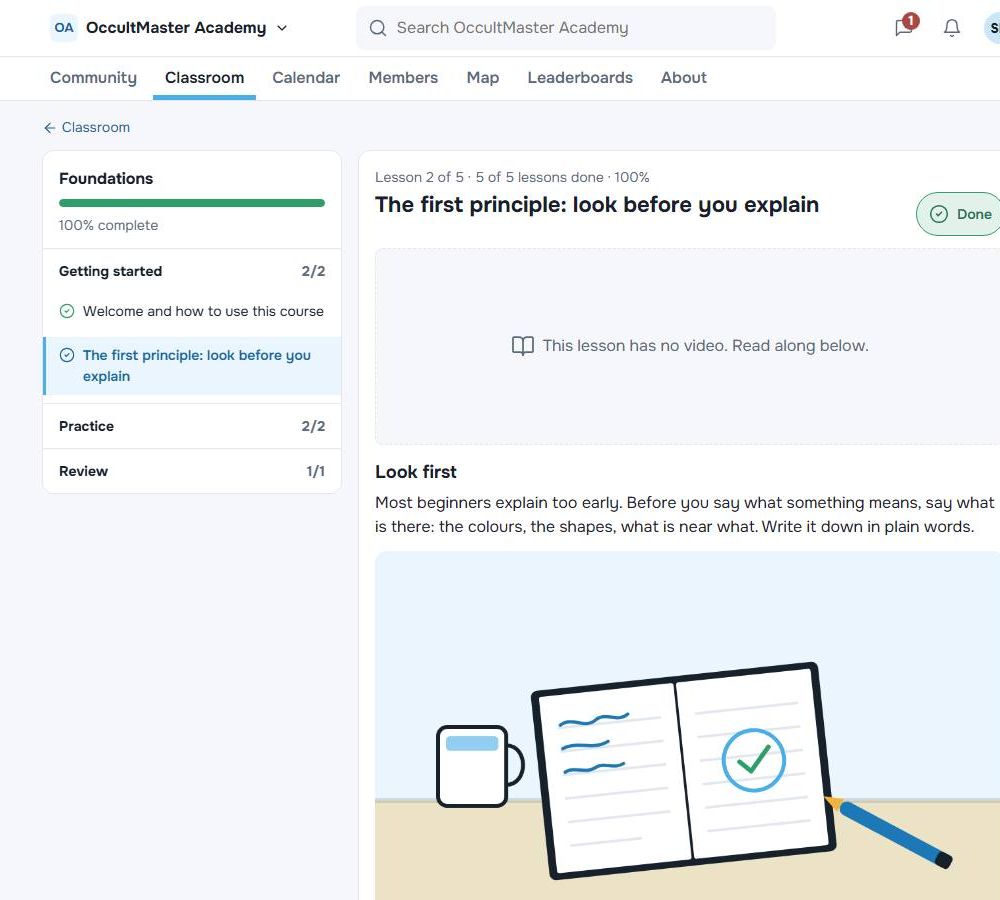
Three tools help members learn at the right pace and finish what they start. All three are set in Admin, Classroom.
Quizzes
A quiz sits at the end of a lesson under the heading Check your understanding.
- In the lesson editor, under Quiz, click Add a question. Write the question in English, and in Hindi if you teach in both.
- Give it 2 to 6 answers (Add an answer adds one) and tick the right one.
- Write the Explanation shown after answering.
- In Course settings, set the Quiz pass mark (%). It is 60 unless you change it.
- Publish the lesson. Publishing checks that every question has its text, 2 to 6 answers with none empty, and one right answer.
A lesson with a quiz is finished by passing it. The member answers and clicks Submit answers and sees their score. Below the pass mark, the page says what is needed and they can try again with Submit again. After each try, the page marks the right answer and shows each explanation.
Drip
Drip releases a lesson a number of days after the member started the course.
- In the lesson editor, set Opens after (days from joining the course). Zero means at once.
- Until then, the member sees "Opens on" with the date and a short note. The lesson's content is not on the page.
- Owners, admins and moderators always see every lesson.
In the outline, a drip lesson shows its day as a tag. Drip suits courses that are meant to be followed week by week, such as a 21-day practice.
Certificates
- In Course settings, tick Certificate when finished.
- When a member has completed every lesson, they see Course complete with Your certificate and its number, a check link and Copy link. The player also shows Your certificate with Open and download.
- Each certificate has a public check page at
/verify/followed by the number, so an employer or a parent can check it is real. - The check page shows the member's name, the course, the date it was earned and the number.
Progress
Members finish each lesson with Mark complete, or by passing its quiz. The course card shows the percentage done, and opening the course takes them to the next lesson they have not finished. To see where learners stop, open Admin, Analytics, Courses.
We only count yes and no for each article. Nothing about you is stored.