
Schedule live classes and recurring events
Add one-off or weekly and monthly events with a join link or a place. Members RSVP, get reminders, and see the link 15 minutes before the start.
On this page
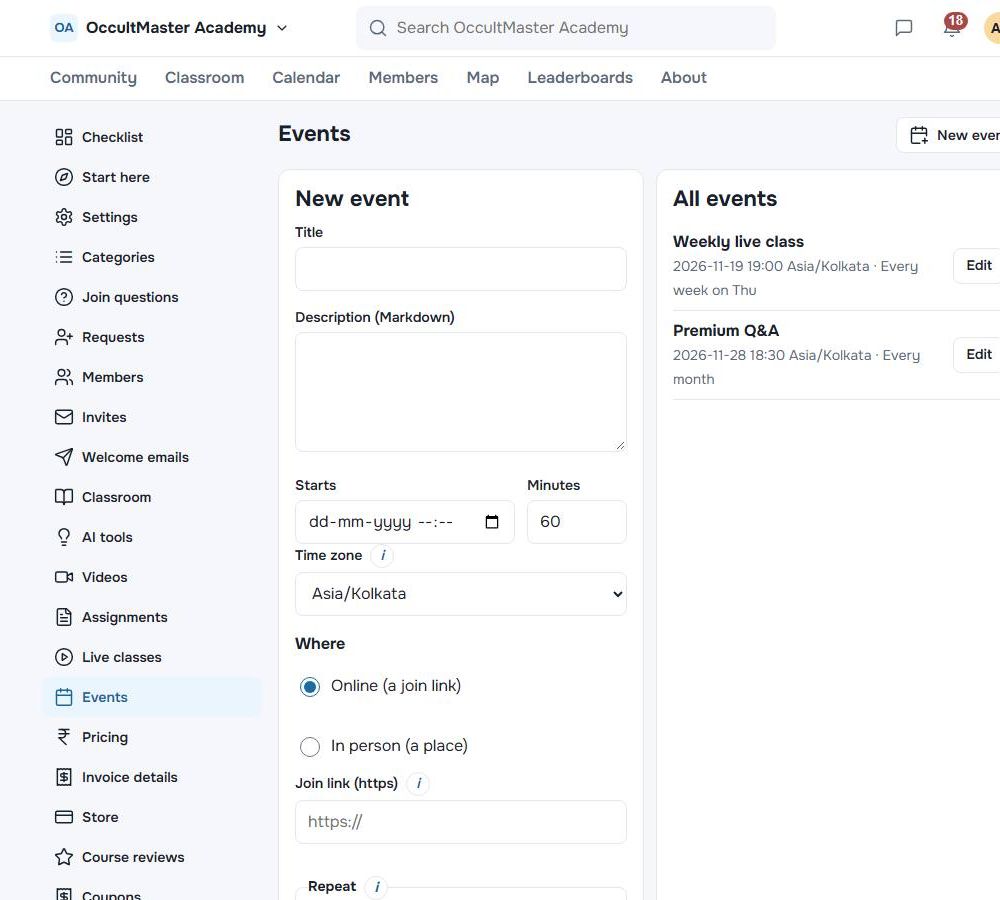
Live classes, Q&A calls and meet-ups go in your community's Calendar (/calendar). If you chose the names Discussions, Live and Progress in Admin, Look and tips, the tab is called Live (/live). You run the call in the tool you already use (Zoom, Google Meet, Jitsi) and paste its link.
An event or a live class?
- An event (this article) puts a date on the calendar with a link to a call you run elsewhere, or a place. It costs nothing extra.
- A live class is streamed inside Occult Master from a broadcasting app such as OBS, with chat, questions, attendance and a saved recording. It uses live hours you buy. See Running a live class. You can link a live class to an event, so it shows on the calendar too.
Add an event
- Open Admin, then Events. The New event form is on the left and All events on the right.
- Title and Description (Markdown).
- Starts, Minutes (how long, 15 or more) and Time zone. Members see the time in their own time zone.
- Where: choose Online (a join link) and paste the Join link (https), or In person (a place) and type the Place. Only the field you need is shown.
- Repeat: Does not repeat, Weekly or Monthly, every 1 to 12 weeks or months. For a weekly event, tick the days. Set a number of times, or until a date.
- Next dates shows the next five dates as you fill the form, so you can check a repeating event before you save. If the start is in the past, the form says "This time is in the past."
- Who can come: all members, members at a Level, a Tier, or people who Bought a course. Put the level number, tier number or course in Level, tier or course.
- Click Save event.
What members get
- The event appears in Calendar, in the Upcoming list and the Month view.
- They can RSVP for each date and add it to their own calendar with an .ics file or Google Calendar.
- Reminders arrive 24 hours and 1 hour before the start, on the bell and by email if they keep that email on.
- The join link shows only to people with access, from 15 minutes before the start. Before that, the event page says when it will appear.
Changing or cancelling
- Click Edit next to an event in All events. If you change the time, the reminders follow the new time.
- Cancel event asks you to confirm, then tells everyone who said they were going.
Course batches
If a course runs in batches, each batch's sessions show in Calendar for that batch's members only, marked "Your course batch".
We only count yes and no for each article. Nothing about you is stored.