
Running a live class
Create a live class under Admin, Live classes, broadcast from OBS with its stream key, and members watch, chat and ask questions on the class page. Attendance is recorded and the recording is saved to the classroom.
On this page
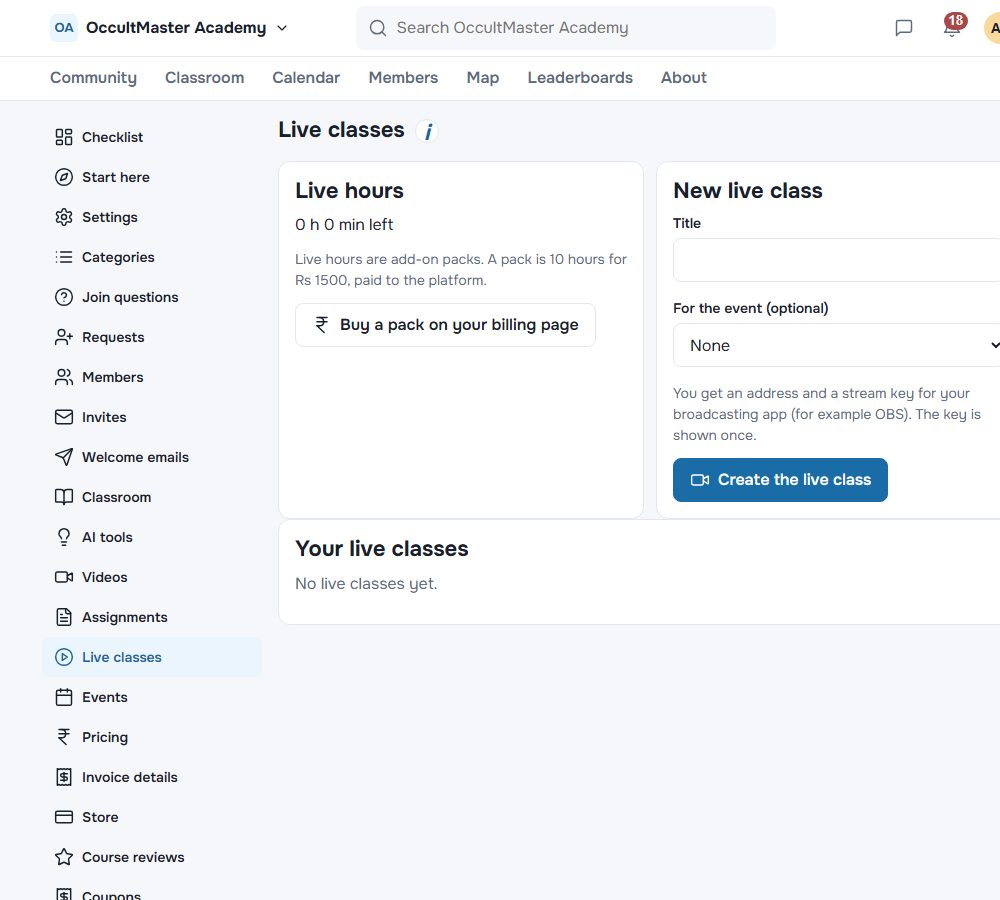
A live class is streamed inside Occult Master, with chat, questions, attendance and a recording. If you would rather run the call in Zoom, Google Meet or Jitsi and share a link, add an event instead: see Schedule live classes and recurring events.
Live classes use add-on hours. Plans include none, so buy a pack of live hours first, from Billing on your account page. Each pack adds hours to one community, and a class uses them only while it is live.
Set it up
- Open Admin, then Live classes, and press Create the live class. You can link it to an event, so the class shows on the community's calendar.
- Copy the server address and the stream key into your broadcasting app (OBS: Settings, Stream, Service Custom). The key is shown only once. If you lose it, make a new one before the class starts.
During the class
- Start broadcasting in OBS, then press Start the class.
- Members open the class page and see the video with their email moving over it.
- Chat is open before the class starts and while it is live. It closes when the class ends.
- Questions sit beside the chat. Members vote, the most-voted questions rise to the top, and you mark each one answered.
- Up to 500 members can watch at once. A member who arrives when the class is full is told the recording follows.
After the class
Press End the class. The minutes come off your hours, and the recording is saved to the classroom in a course called Live class recordings. If you would rather not share it, press Unpublish the recording.
Attendance lists who joined and for how many minutes.
We only count yes and no for each article. Nothing about you is stored.