
Uploading lesson videos
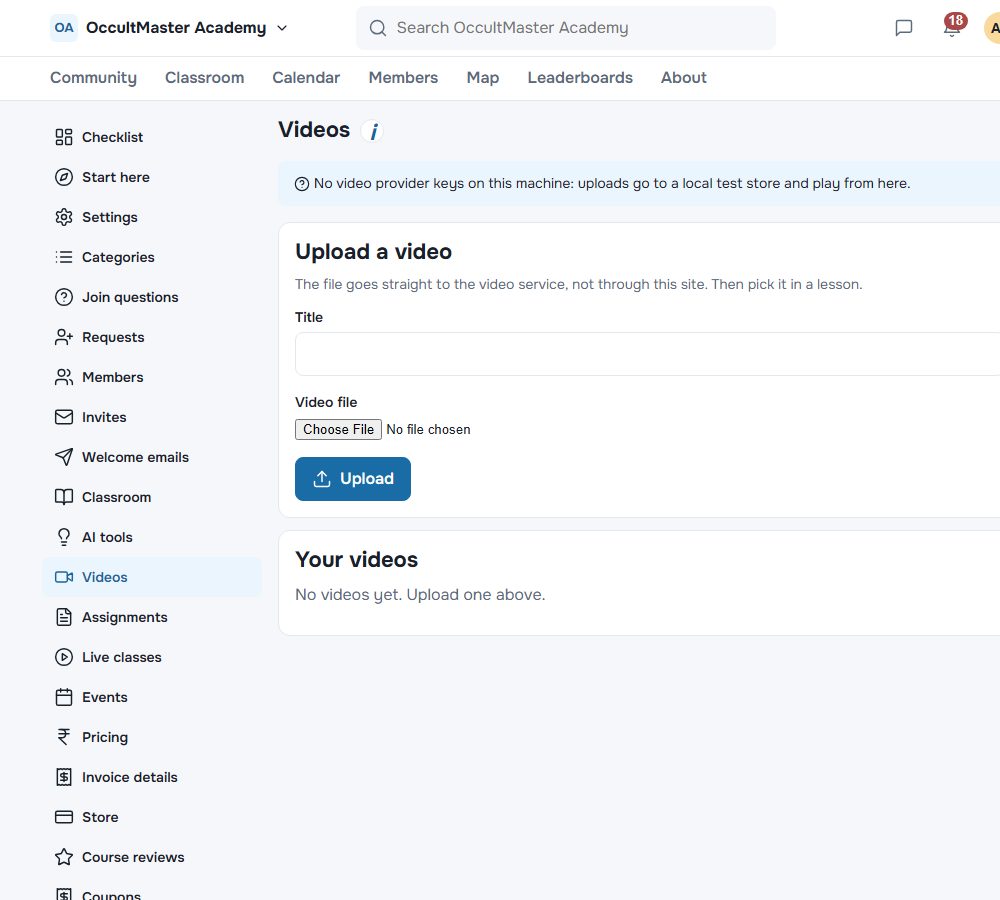
Upload a video under Admin, Videos, then pick it in a lesson. It plays with the member's email moving over the picture, through a link that expires, and the lesson completes when 90% is watched.
On this page
YouTube and Vimeo links still work in lessons. For paid courses, upload the video to Occult Master instead, so it stays inside your community.
Upload
- Open Admin, then Videos.
- Give the video a title, choose the file and press Upload. The file goes straight to the video service, not through Occult Master, so a long recording does not time out.
- The video shows Processing while the service prepares it, then Ready.
Use it in a lesson
Open the lesson in the course builder, pick the video under Uploaded video, and publish the lesson.
What protects it
- A link that expires. Each time a member opens the lesson, the video gets a fresh signed link. A copied link stops working after a few hours.
- A moving watermark. The member's email moves across the picture every few seconds, so a screen recording carries their name. It cannot be switched off.
- Two devices. Each account can be signed in on two devices, a phone and a laptop. Signing in on a third signs out the one used least recently.
Completion
A lesson with an uploaded video completes by itself when the member has watched 90% of it. Skipping ahead does not count. The Mark complete button stays for anyone who prefers it.
We only count yes and no for each article. Nothing about you is stored.