
Your profile, and who can see it
You have one profile on the main site, at /@ and your handle. It starts private. You choose its sections, their order and who sees what.
On this page
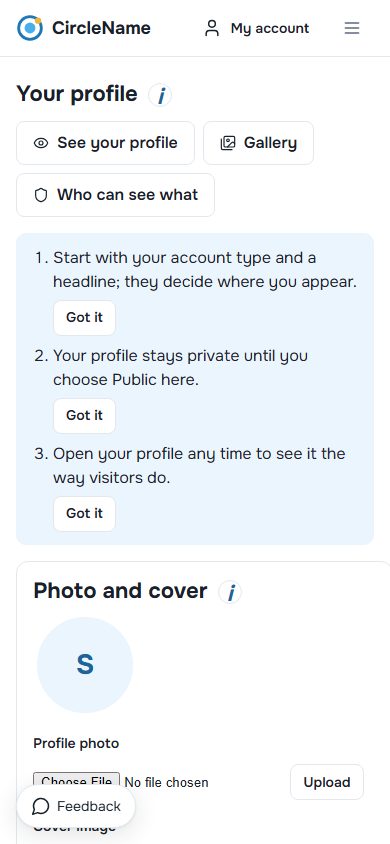
You have one profile for the whole of Occult Master. It lives on the main site at an address like /@your-handle, and it is the same profile in every community you join.
Private until you choose
- A new profile is private.
- A private profile shows only a small card, with your name and photo. Only signed-in people who share a community with you see it.
- Teachers, consultants and companies can make their profile public. Students can do so only once the platform allows it.
- A public profile can appear in search engines such as Google. A private one never does.
What you can put on it
Every section is optional. Open Edit profile and fill in only what you want to show:
- Bio: a few lines about you. The Help me write button drafts a bio from what is already on your profile. You edit the draft; nothing is saved until you save it.
- Categories: the subjects you teach or study, up to 8.
- Languages you speak or teach in.
- Education.
- Courses taught: filled in automatically from the courses you run in your communities.
- Certificates: only the certificate numbers you add yourself. Each number is checked with the community that issued it.
- Gallery: photos, YouTube links, PDFs and audio. See the article on galleries.
- YouTube videos.
- Website and social links.
- Services and prices.
Use the up and down buttons beside each section to put them in the order you want.
Where you are, and your phone
- Your profile shows your country and city. If the platform allows full addresses, an Address field also appears; what you type there is shown on your profile, so leave it empty if you would rather not share it.
- Your phone number is never shown publicly, unless the platform lets owners choose to show it.
- A consultant's phone and email are never shown on the profile.
Follow, Connect and messages
- Follow is one way. You see what the person shares; they do not have to follow you back.
- Connect needs both people. One sends a request, and the other accepts it on the People page.
- Messages open once you are connected.
- Each person has a wall on their profile. People can mark a wall post Helpful and comment on it.
- Report sends a wall post to the platform's team to review.
- Block removes any follow or connection between you, and stops the person messaging you. You can unblock them later.
Who can see what
The Who can see what screen lists each part of your profile and who it is shown to, so you can check and change it in one place. The people you have blocked are listed there too.
Your data, and deleting your profile
- Download my data in My account gives you one file with everything of yours.
- You can delete your profile from Who can see what. You have 30 days to undo it. After that the profile is gone.
Companies and institutes
A company or institute can list the teachers who work with it on its profile. A teacher is shown only after they accept the link.
We only count yes and no for each article. Nothing about you is stored.