
Inviting people: email invites and invite links
Share your community's link, send email invites to up to 200 people at a time, and make invite links with an expiry and a use limit, all from Admin.
On this page
The first members usually come from people who already know you: students, clients, followers. Here is how to bring them in.
Your community's link
- Open Admin. The Invite people box shows your Invite link.
- Copy it and share it wherever your people are: WhatsApp, Instagram bio, email, a class.
- The link opens your About page with the join button. People who use it join the usual way, and approval applies if it is on.
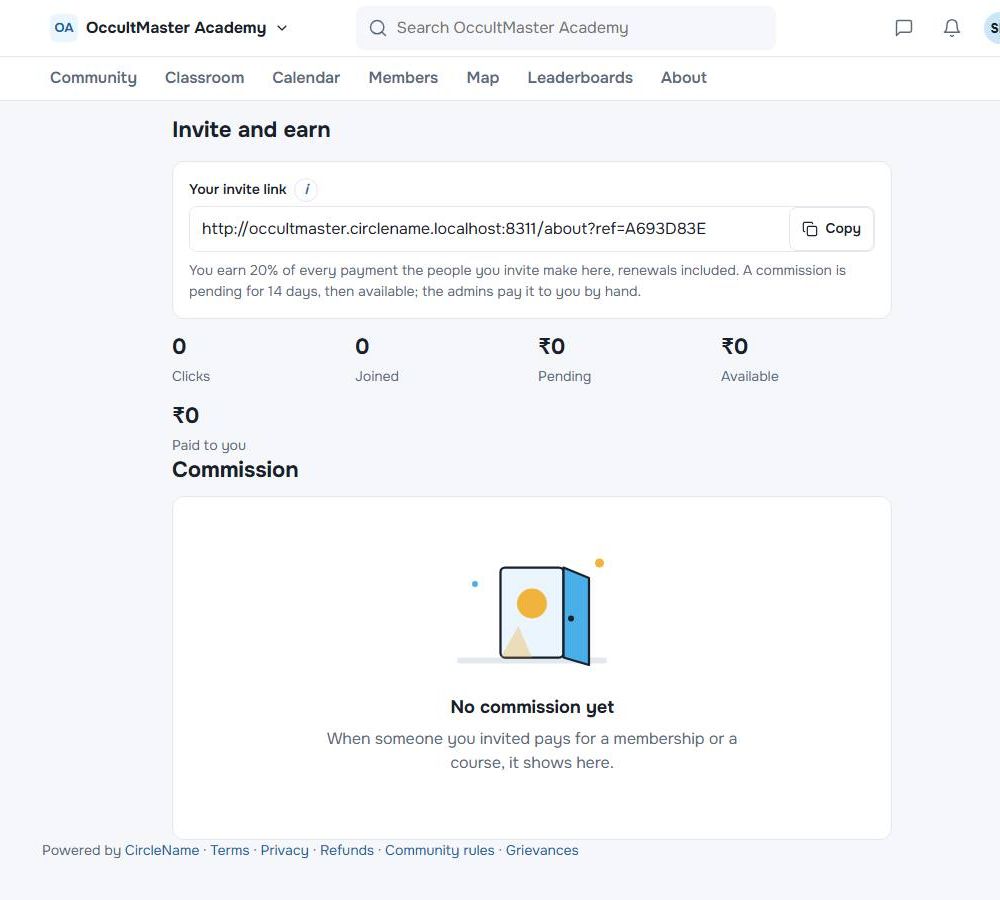
Members can share their own link from Invite friends in their menu (Invite and earn when affiliates are on). With affiliates on, they earn a commission when the people they invite pay. See the article on affiliates.
Email invites
- Open Admin, Invites. Under Invite by email, paste one address, or up to 200, separated by commas or new lines.
- Click Send invitations. The screen says how many were sent, and how many were already members, already invited or not valid. People who are already members are skipped.
- Each person gets an email with a link that works for 14 days. The link works once, and only for the address it was sent to: if someone else opens a forwarded link, they are asked to sign in with that address.
- Invitations sent shows how many are waiting, accepted, expired or revoked. Resend sends the email again with a fresh 14 days; Revoke stops the invite.
Invite emails are sent in the background, so pasting 200 addresses does not slow anything down.
Shareable invite links
Under Shareable invite link on the same screen:
- Name (only you see it): for example "Instagram bio" or "March workshop".
- Expires after (days, 0 = never): 14 unless you change it.
- Most uses (0 = no limit): the link stops after that many people have joined with it.
- Click Make a link.
Invite links lists each link with a Copy button, its uses, its expiry and whether it is Working, Turned off or Used up or expired. Turn off stops a link at once.
What an invite does
- An email invite or an invite link skips the approval step, and it opens an invite-only community.
- It never skips payment: in a paid community, the person still chooses a plan and pays.
- Inviting someone never makes them a member by itself. They still go through the join form.
Bulk actions in the members table
In Admin, Members, tick the members you want, or Tick all. Under Do something with the ticked members, choose Grant a course, Add to a batch, Change role, Remove from the community or Export the selection (CSV). Write a Reason (kept in the log) and click Apply. Each bulk action is written to the audit log with its reason.
To bring many people at once from a spreadsheet or another platform, see the article on importing.
For an invite-only community, see the visibility settings in the article on the About page.
We only count yes and no for each article. Nothing about you is stored.