
Moderation: reports, removing and banning, post approval
Members report posts and comments, and the team decides. You can delete content, turn comments off, hold posts for approval, mute, remove or ban a member, and see every decision in the audit log.
On this page
Most communities need very little moderation if the rules are clear. When something goes wrong, these are your tools.
Who can moderate
Owners, admins and moderators can delete any post or comment, pin and unpin posts, turn comments off, handle reports, approve or decline held posts and unmute members. Owners and admins also set the moderation rules, manage members and read the audit log. Change someone's role in Admin, Members.
Reports
- Any member can open a post's menu and choose Report, then say what is wrong under What is wrong with it? and send it. Under a comment, Report sends the report at once, with no reason.
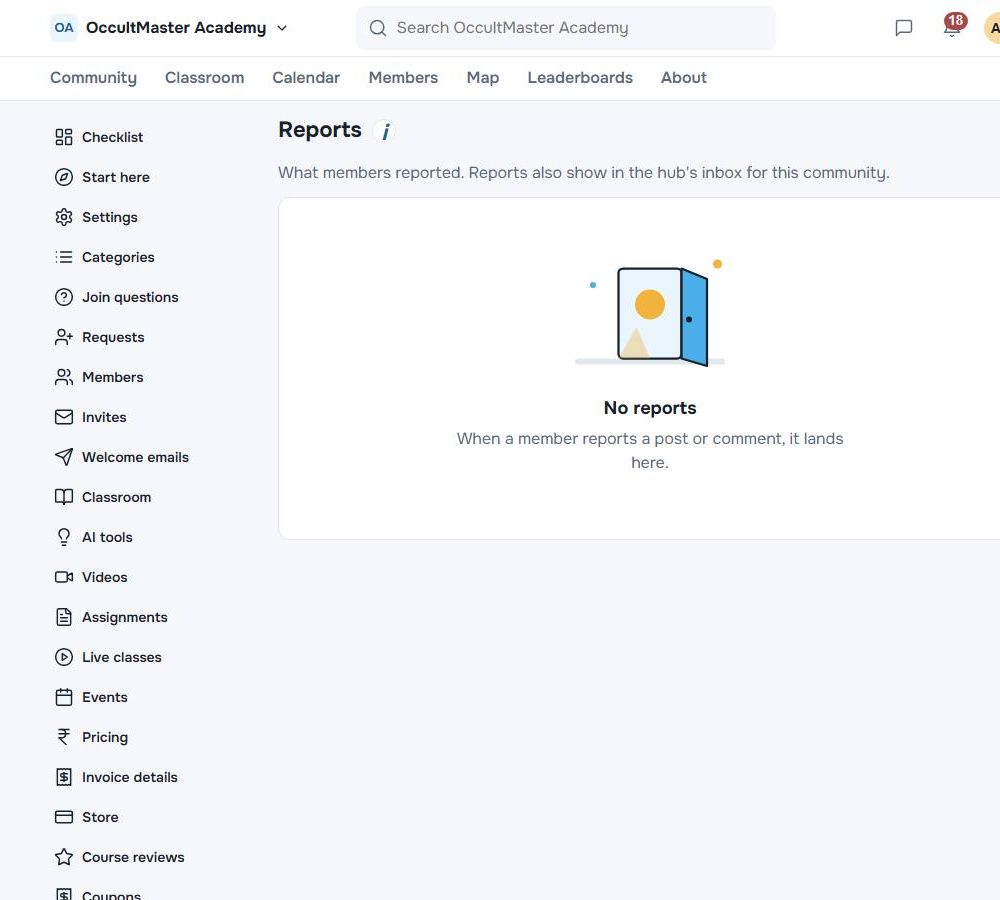
- The report appears in Admin, Reports with the reported text.
- Choose Delete the content to remove it, or Keep it, close to leave it and close the report.
On a single post
From the post's Post actions menu:
- Delete removes the post.
- Turn comments off stops new comments; earlier comments stay.
- Pin to the top or Unpin.
Holding posts for review
Open Admin, Moderation. Under Rules:
- Posts from members below this level wait for approval: choose a level, or Nobody waits.
- Words that hold a post for review: one per line or separated by commas. A whole word or phrase matches, in any case. The team's own posts are never held.
- Slow mode per category: the minutes a member waits between two posts in that category (0 turns it off).
Click Save rules. A held post is seen only by its author and the team, and the team gets a notification on the bell. It waits under Waiting for review with the reason it was held. Approve puts it in the community feed. Decline deletes it; write a Reason (the author sees it) first.
What the AI flags
Every new post and comment from a member is checked by the AI, including the blocked-word list the platform keeps for English, Hindi and Hinglish. When something looks wrong (abuse, contact details to move people off the platform, many links, shouting), it appears under Flagged by the AI in Admin, Moderation with its reasons. Open it, then choose Keep it or Remove it (write a reason first; the author sees it). The AI never removes anything itself, and the team's own posts are not checked.
A community can ask the AI to also hide what it flags until someone decides, or turn the checks off. A flag is a reason to look, not proof.
Muting
On a member's page in Admin, Members, choose Mute for 24 hours or Mute for 7 days. A muted member can read but cannot post, comment or send messages. Muted members in Admin, Moderation lists everyone muted, with Unmute.
Removing and banning
In Admin, Members, each member has two buttons:
- Remove: they leave the community. They can ask to join again.
- Ban: they leave and cannot join again. Use it for spam or abuse.
A removed or banned member can be brought back with Restore.
The audit log
Admin, Audit log shows who changed what in the community, newest first (the last 500). It records moderation decisions and rule changes, mutes, the members table's bulk actions with their reason, and settings such as visibility and the custom domain. The single Remove, Ban and Restore buttons are not recorded there today; when you want a removal on record, tick the member and use the bulk action Remove from the community with a reason.
We only count yes and no for each article. Nothing about you is stored.