
Notifications, email choices and phone notifications
Everything shows on the bell. You choose which kinds also come by email, and you can turn on push notifications on each phone or computer.
On this page
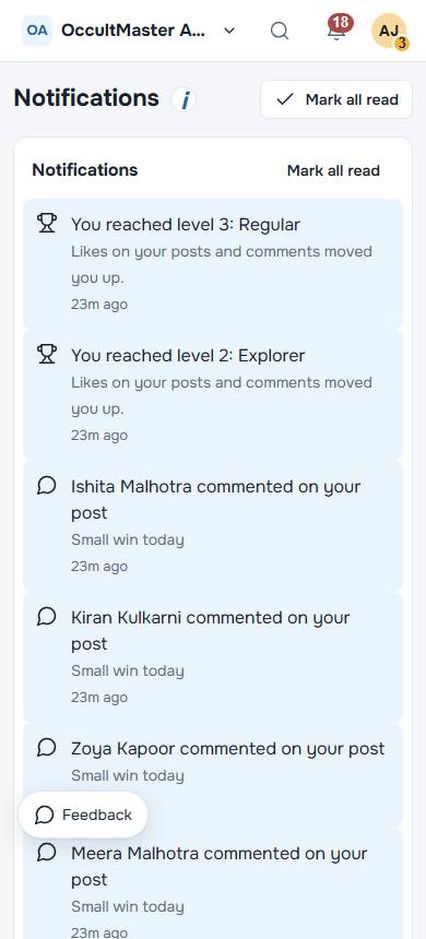
The bell
The bell in the top bar shows how many notifications you have not seen. Tap it to see the list. Each one links to the post, comment, event or page it is about. Mark all read clears the count.
Links in emails and notifications keep their destination. If you are signed out when you open one, you first see the community's About page or the sign-in page, and after you sign in you land on that post or lesson.
You get a notification for:
- comments on your posts and replies to your comments;
- mentions of your name;
- reaching a new level;
- your join request being approved or declined;
- event reminders and cancelled events;
- payments;
- posts the admins email to everyone;
- the weekly digest.
Admins also get one for each new join request.
Choose what comes by email
- On the main site, open My account, then Notifications.
- Under Emails, tick the kinds you want by email and untick the rest.
- Tap Save.
The bell always shows everything; these choices only decide what is also emailed.
The weekly digest
Once a week, each community you belong to can send you a short digest: the top posts since your last digest, this week's events, and how many unread notifications you have. If there is nothing new, no email is sent. Every digest has a one-click link to stop it.
Push notifications on your phone or computer
Push notifications appear even when the site is closed.
- Open My account, Notifications on the device you want them on.
- Tap Turn on push on this device and allow notifications when your browser asks.
- Repeat on each device. Turn off on this device stops them there.
Push is sent for mentions, replies, event reminders and payments, and for consultations: a reminder 15 minutes before a booked session, and a warning when your wallet is running low during one. Each is sent only for the kinds you keep on. On an iPhone, add the site to your Home Screen first (see the article on installing the app). If your browser blocked notifications earlier, allow them again in the browser's site settings.
We only count yes and no for each article. Nothing about you is stored.